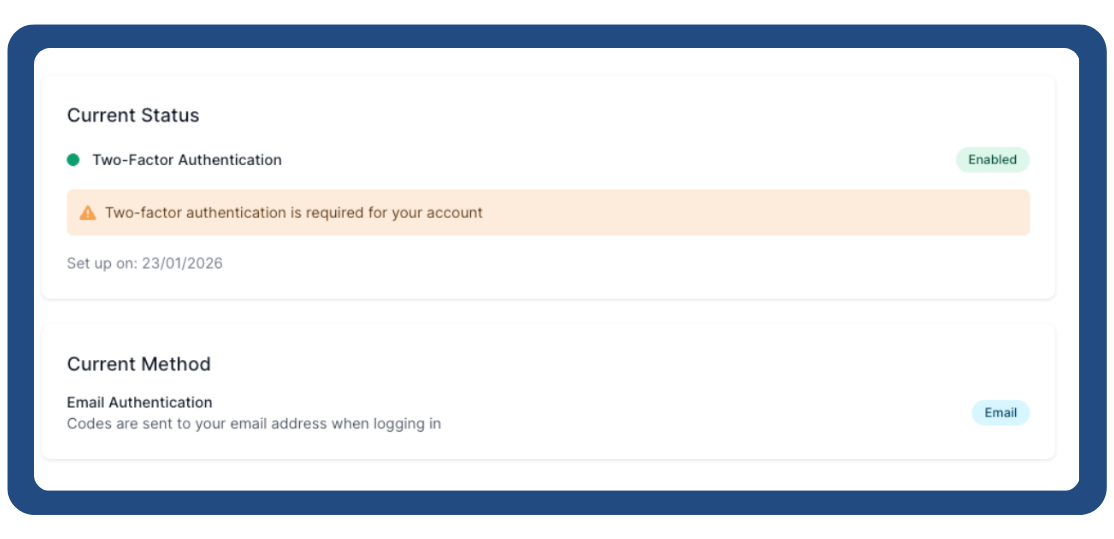
How Set up Two-Factor Authentication

Agents guide to Two-Factor Authentication in the UniHomes Agent Portal
Once 2FA has been enabled on your account, the first time you login you’ll be prompted to set up 2FA:
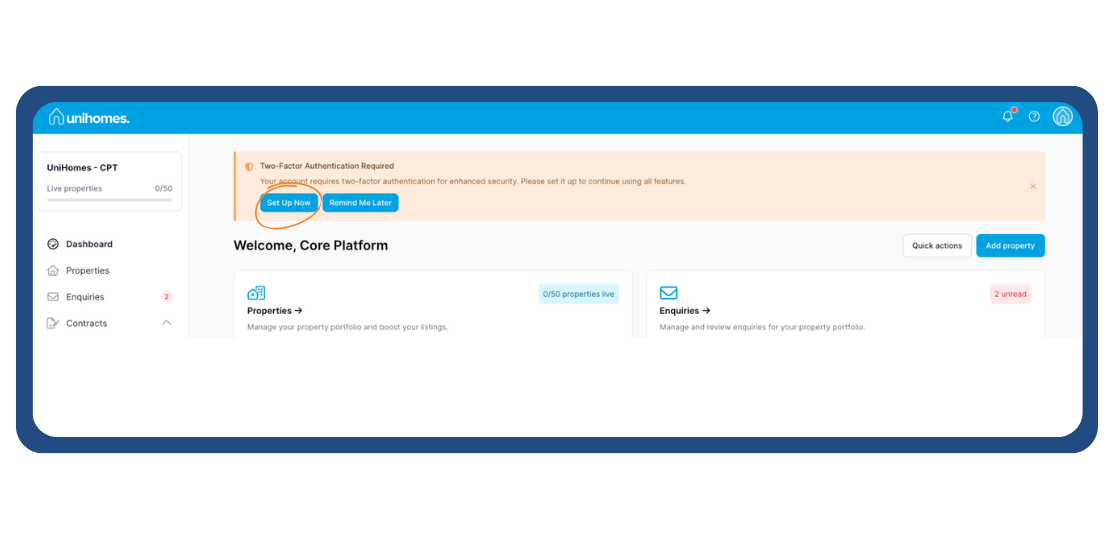
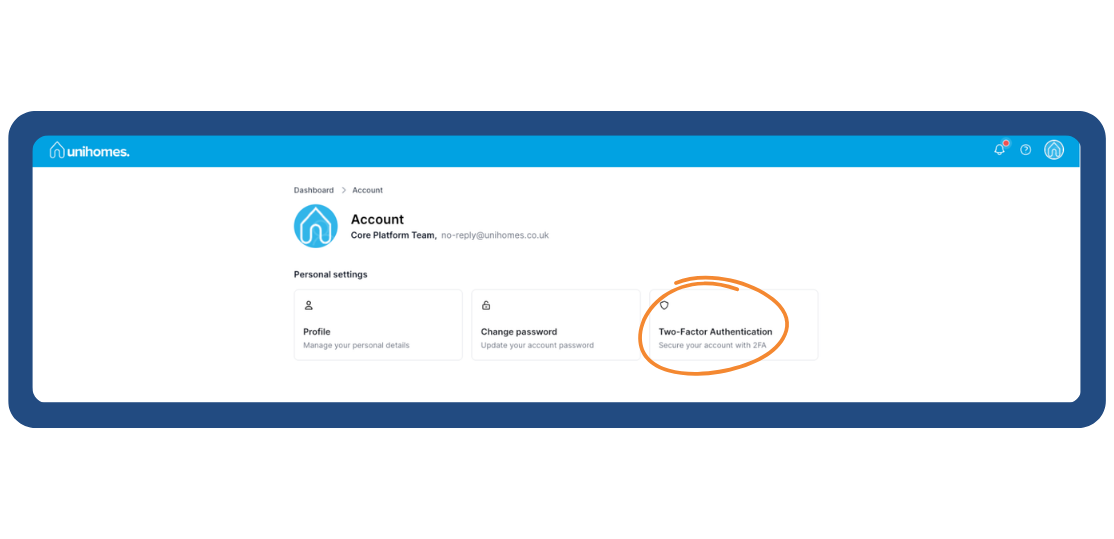
If you click the Set Up Now button, you’ll be taken directly to the setup page. You can dismiss the prompt for a short period if you wish. If the prompt is dismissed, but you would like to set up 2FA, you can visit https://agents.unihomes.co.uk/account and select Two-Factor Authentication option in there:
Once you’re on https://agents.unihomes.co.uk/account/personal/two-factor you’ll be presented with the current status of your 2FA setup:
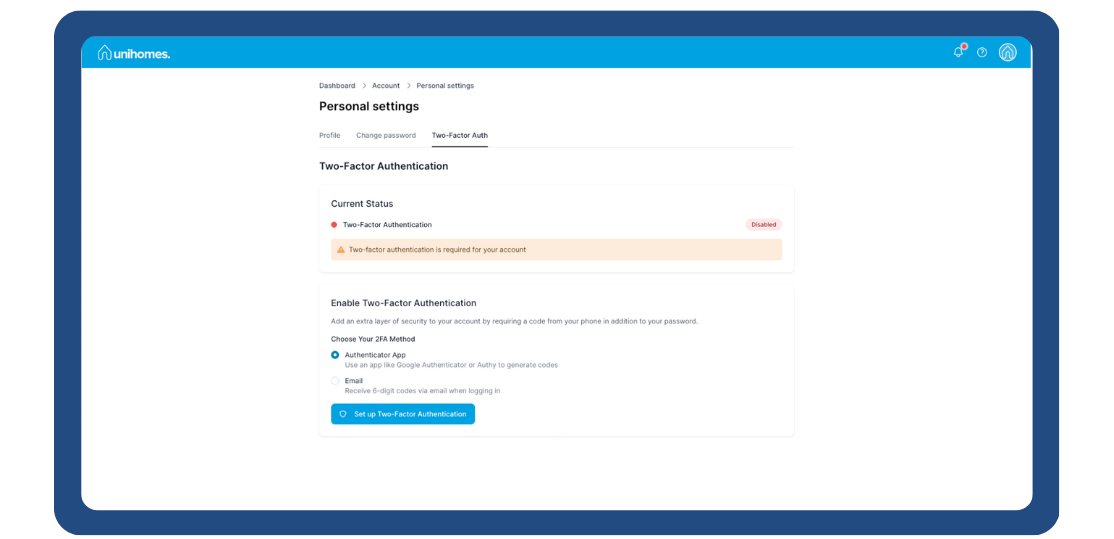
We have two methods available for you to use. We would strongly recommend you utilise the Authenticator App version of 2FA as it keeps your account the most secure. You can only have one method active for your account at any time. You will need to reach out to your account manager if in the future you wish to change the method you use.
Authenticator App
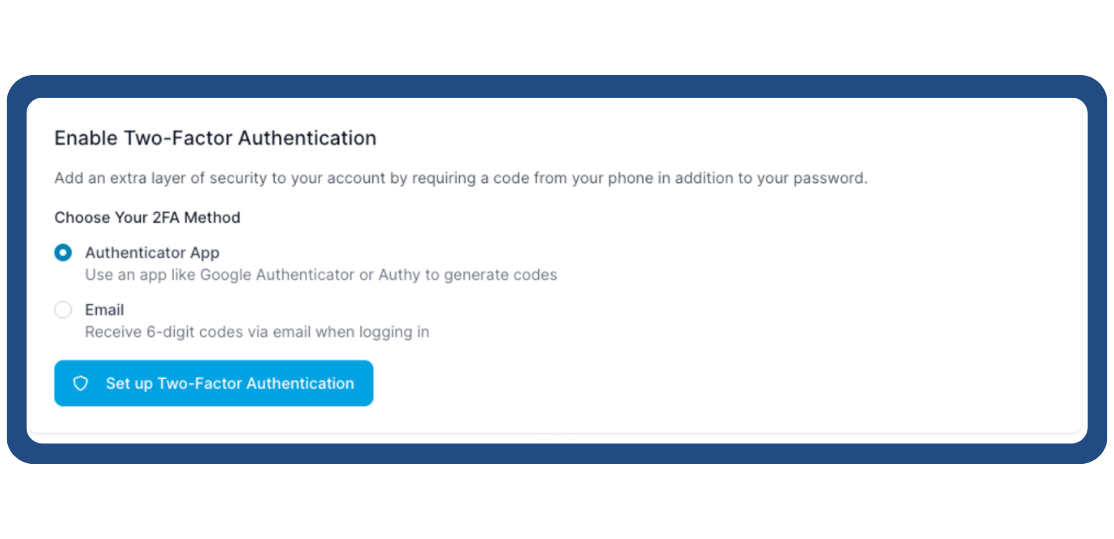
With the Authenticator App selected, click the Set up Two-Factor Authentication button. For security purposes, we’ll ask you to re-enter your password.
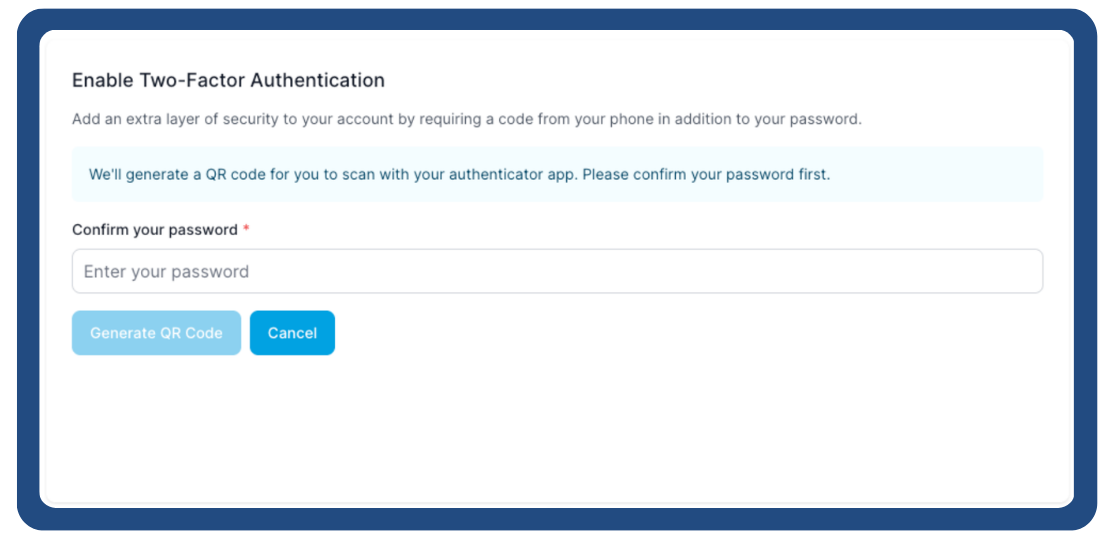
Once you enter your password, please click the Generate QR Code button. The system will then return your unique QR code which you can scan using an app like Google Authenticator or Authy.
Scan the QR code with your app, and it should then add UniHomes: youremailaddress@yourdomain.com to the list of accounts in the app.
Enter the six-digit code the app is giving you on the screen and click Confirm & Enable:
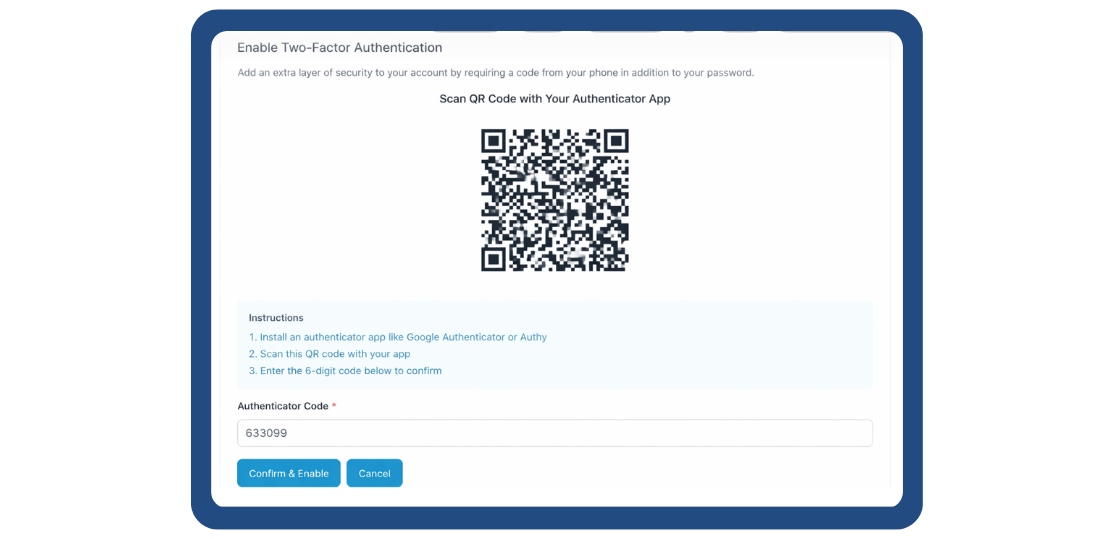
If the code is correct, you’ll be shown a success message and your recovery codes:
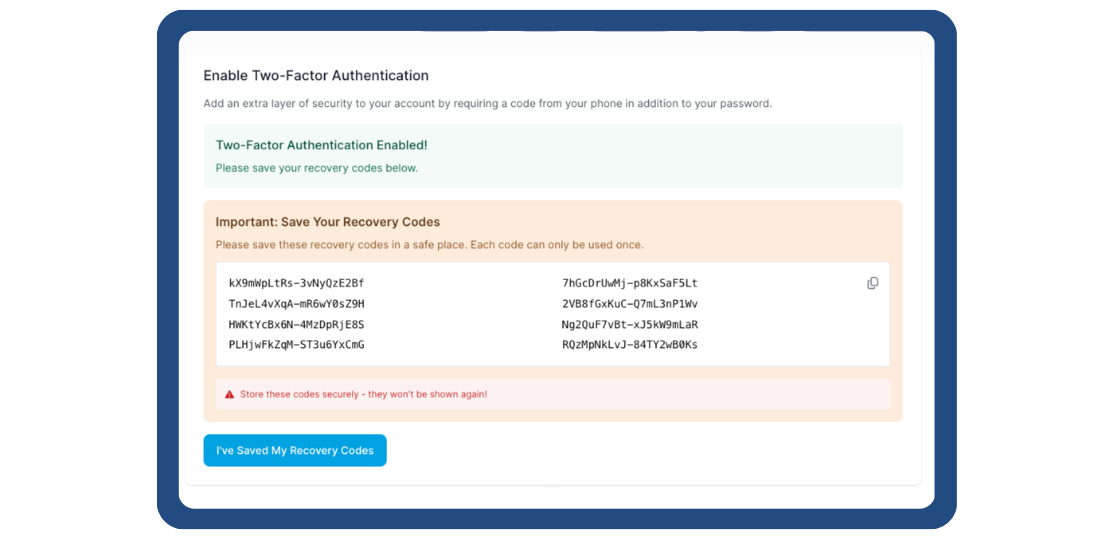
You can click the copy icon on the top right to copy the codes to your clipboard. It’s really important that you paste these to somewhere secure. If you lose your device, you’ll be able to use these codes a maximum of once each to log back into the agent portal.
Once you’ve saved these codes, you can click the ‘ I’ve Saved My Recovery Codes’ button to continue.
You’ll be presented with a new screen layout confirming the success of your setup:
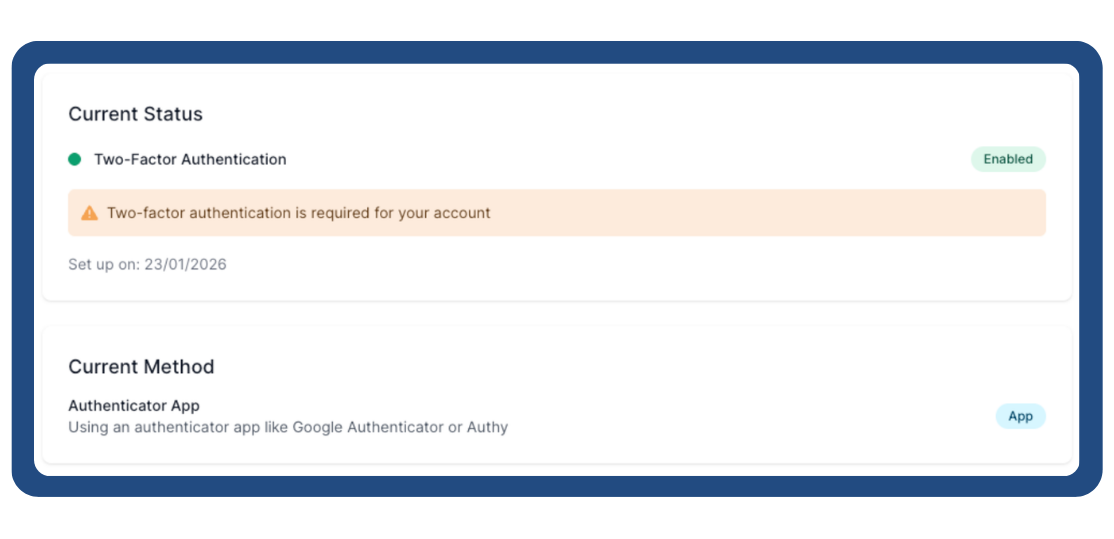
Below this are two further options.
Recovery Codes
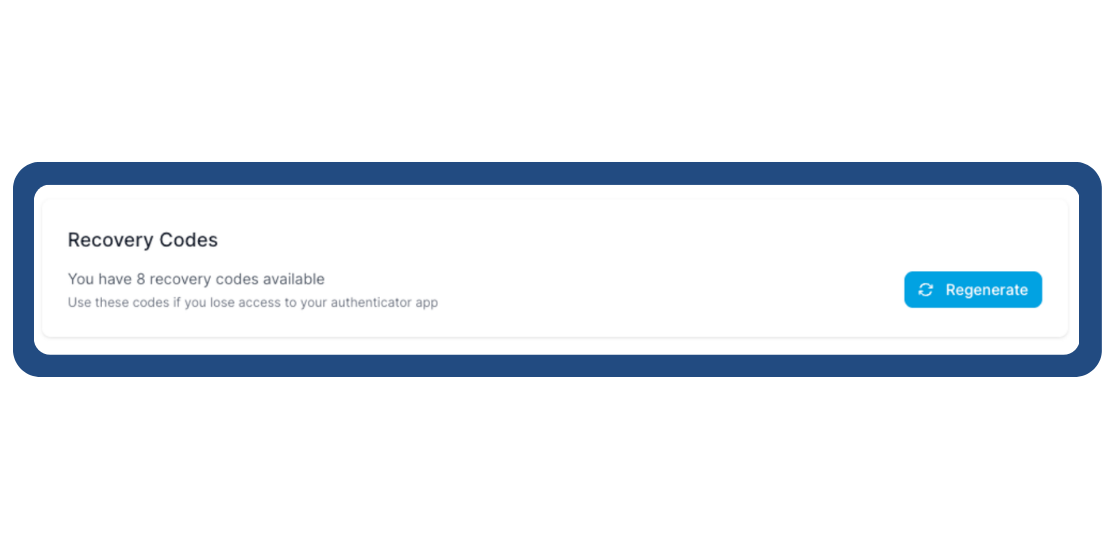
Should you lose your device and need to login using one of your recovery codes, you’ll then cause that code to expire so it cannot be re-used a second time. You have eight codes so that’s eight times you can login before you’re completely locked out. If you need to extend the amount of time you have to add a new device, you can Regenerate Codes to create eight new codes.
For security purposes, you’ll need to re-enter your password to regenerate the codes:
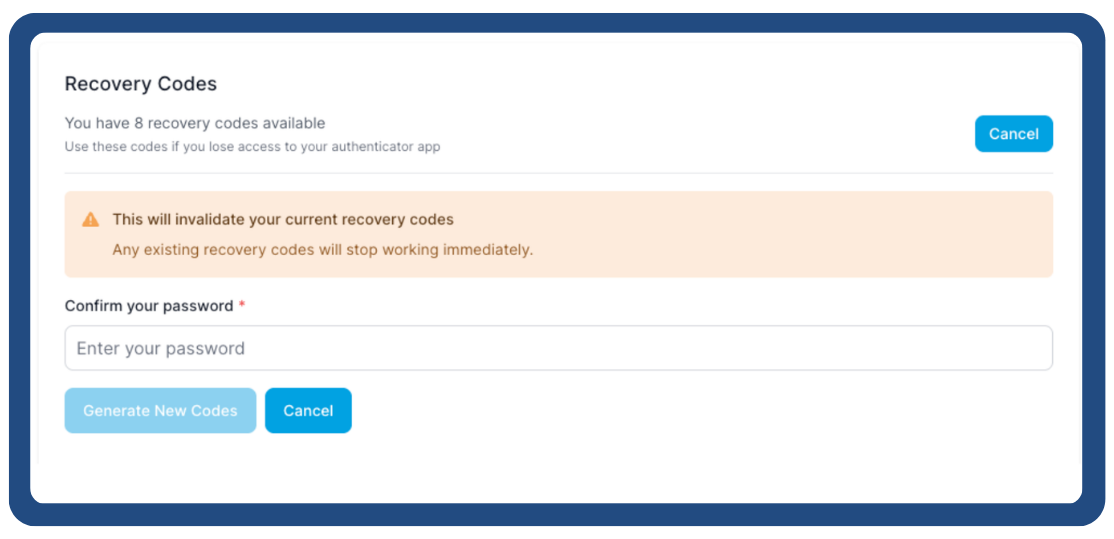
Important: Once you regenerate your codes, your old codes will no longer work and should be discarded:
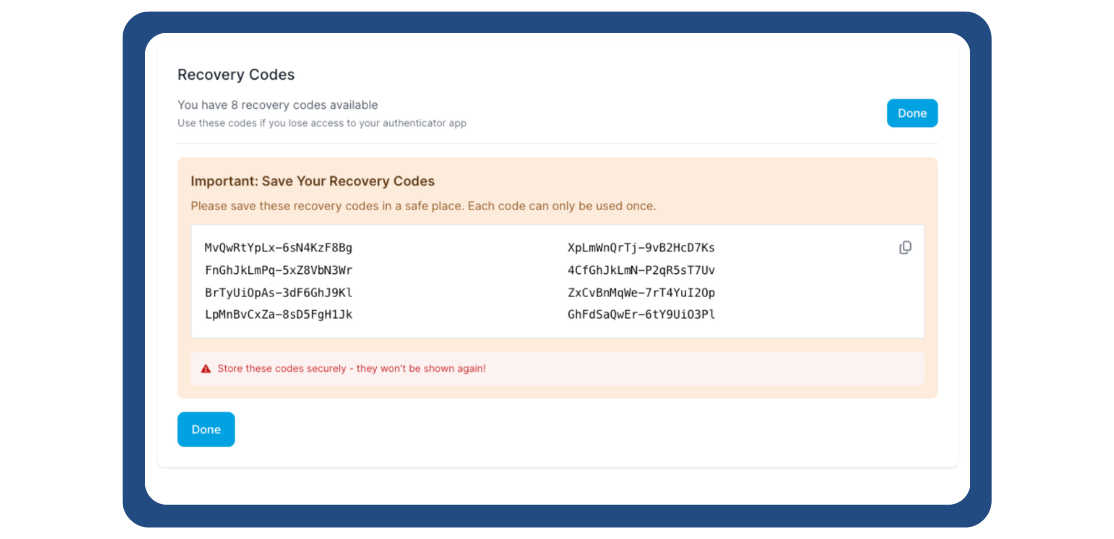
Click either Done button when you’ve copied and saved your codes to a safe place.
Additional Devices
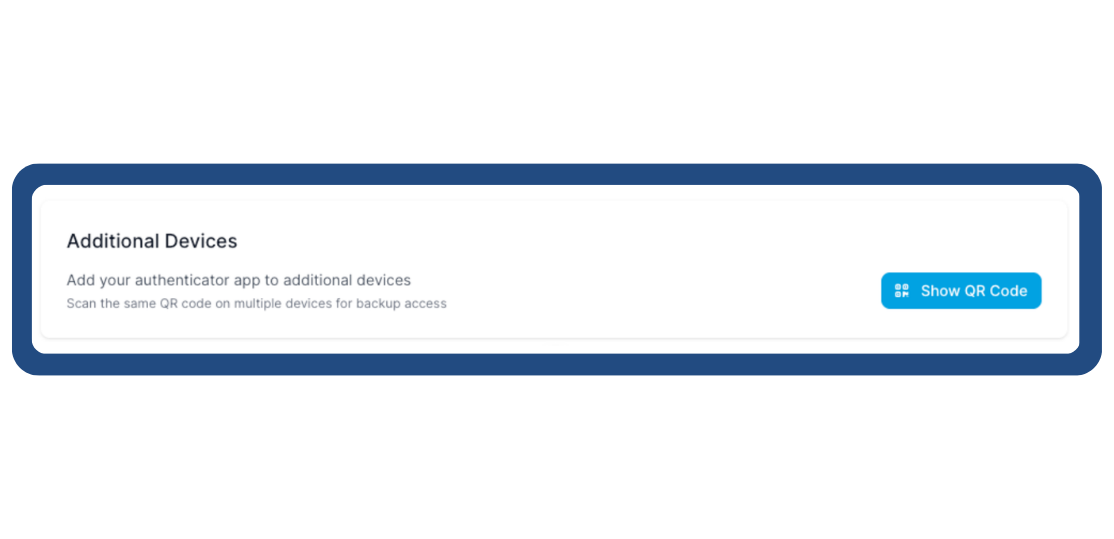
If you lose the original device you were authenticating with, or you would like to add an additional device, you can click the Show QR Code button to show your QR code again.
Important: This code is for your account, it does not generate a new QR code for each device and will return the same six digit code for every device it is on, therefore, it should not be used to allow multiple users to log into the same account as that will make it harder to secure the account in the event of an incident. You can set up multiple users in the agent portal so shared accounts are not necessary and we would strongly advise against it.
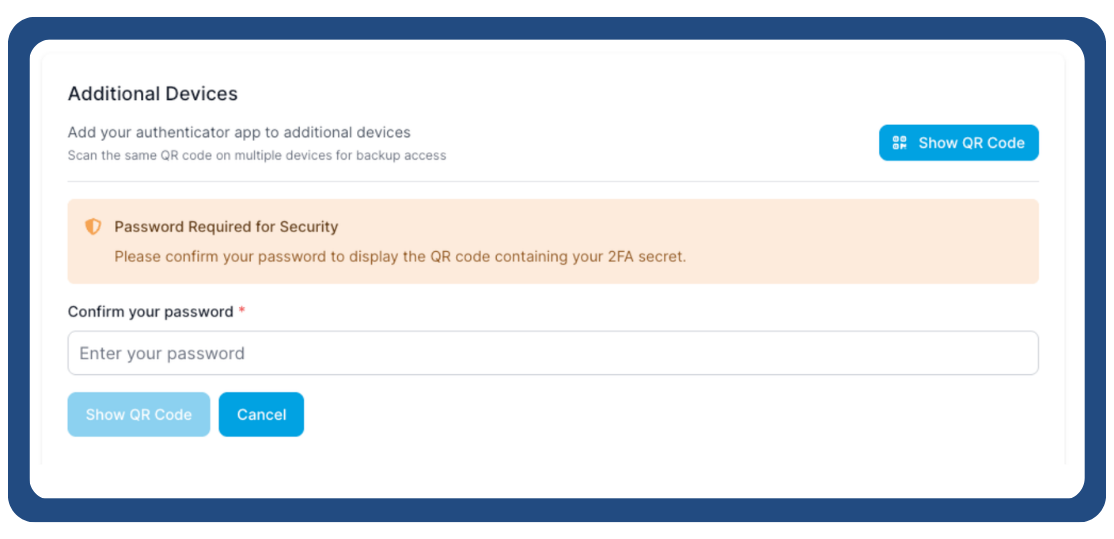
For security purposes, you’ll need to enter your password again to access the QR code:
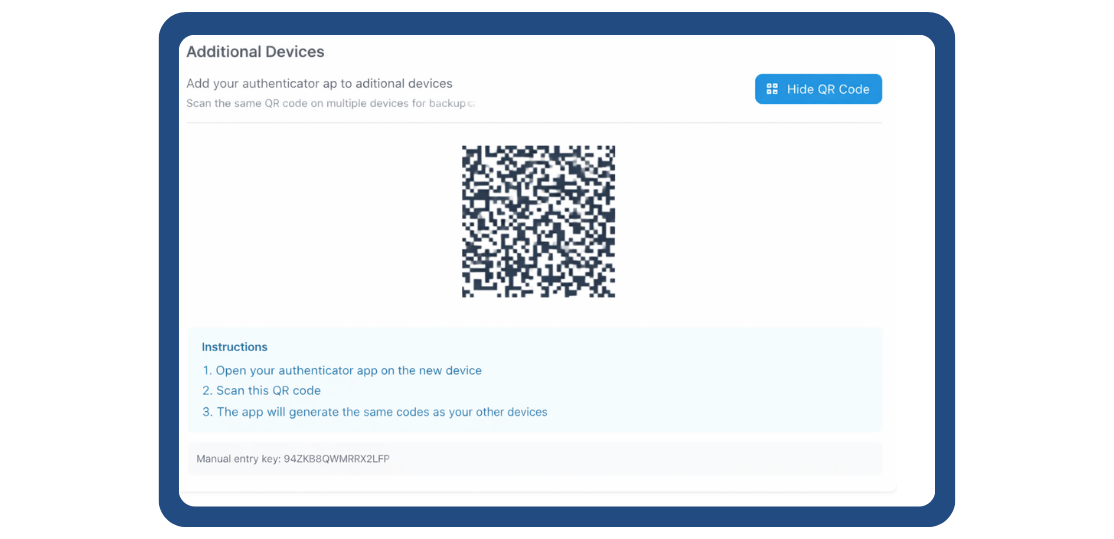
The page will show you the QR code again as well as a manual entry key in case you’re unable to scan the QR code with the device you’re using:
Logging in with the Authenticator App method
Log in as you normally do at https://agents.unihomes.co.uk/ and you’ll be presented with the form to input your six digit code from your app:
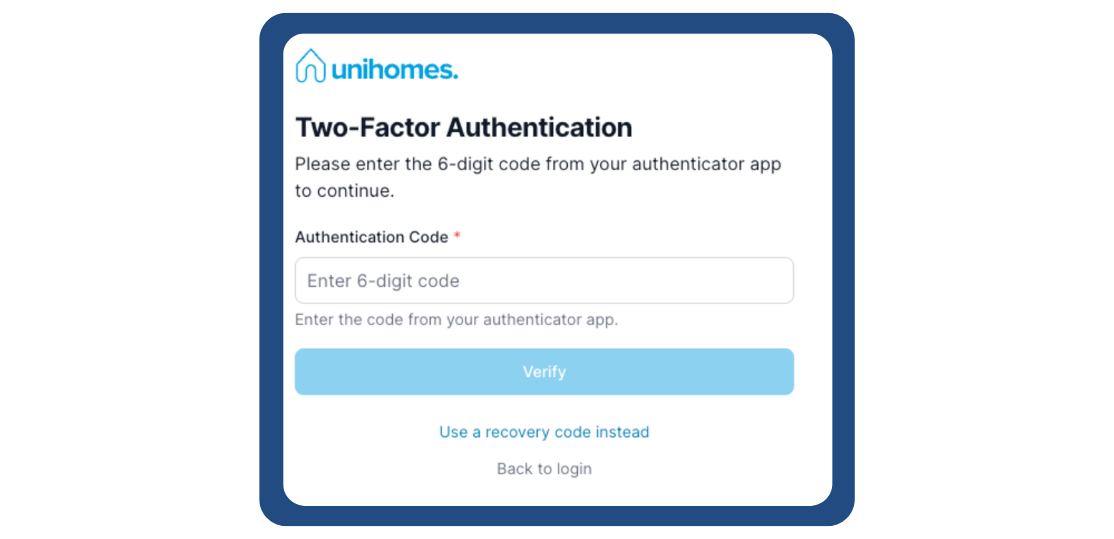
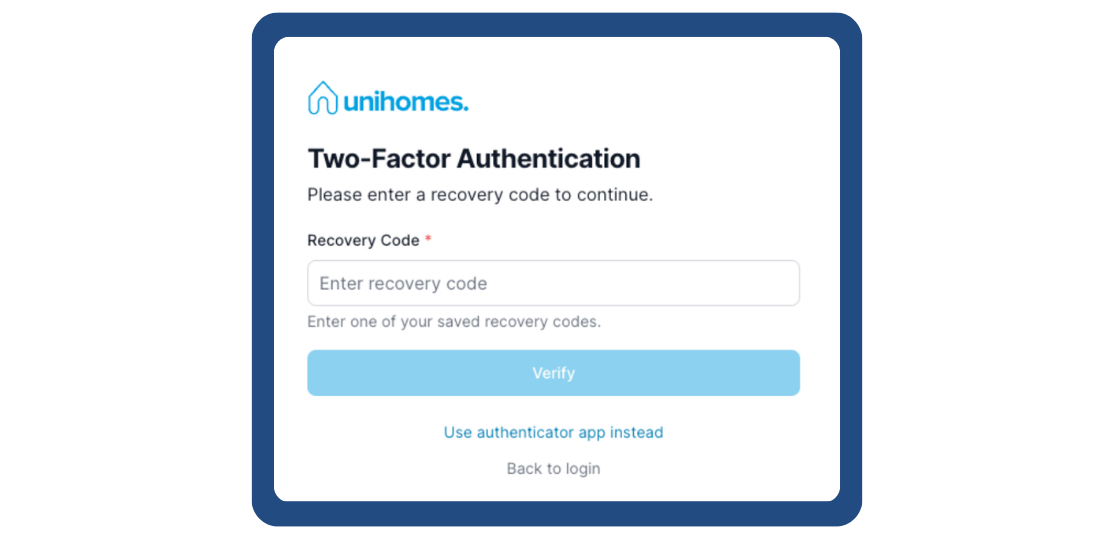
If you’re unable to access your device with the app on it, you can use one of your recovery codes instead:
We’re unable to access either your app code or recovery codes. Please reach out to your account manager in the event of an issue.
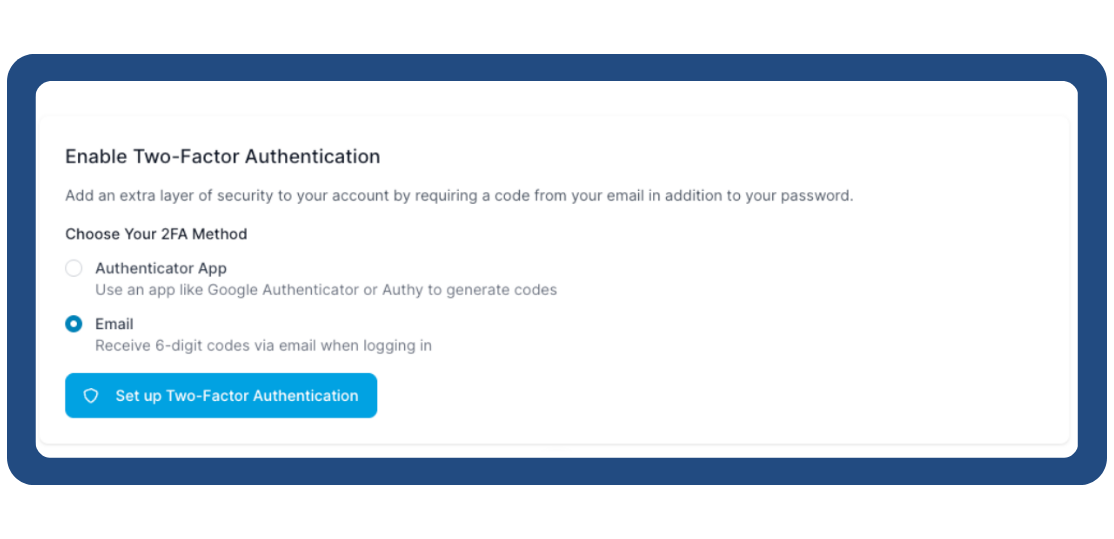
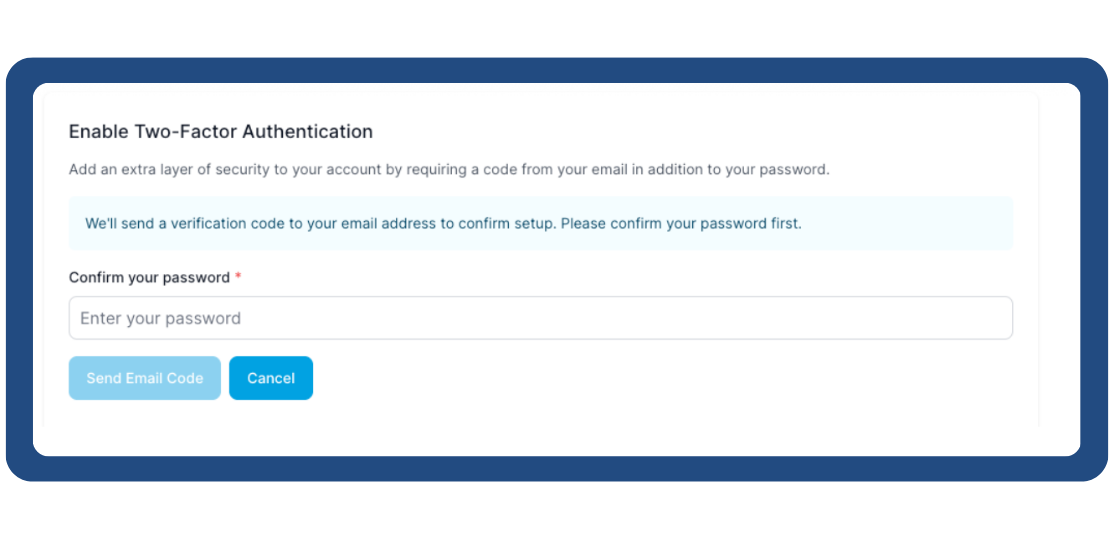
With the Email selected, click the Set up Two-Factor Authentication button. For security purposes, we’ll ask you to re-enter your password.
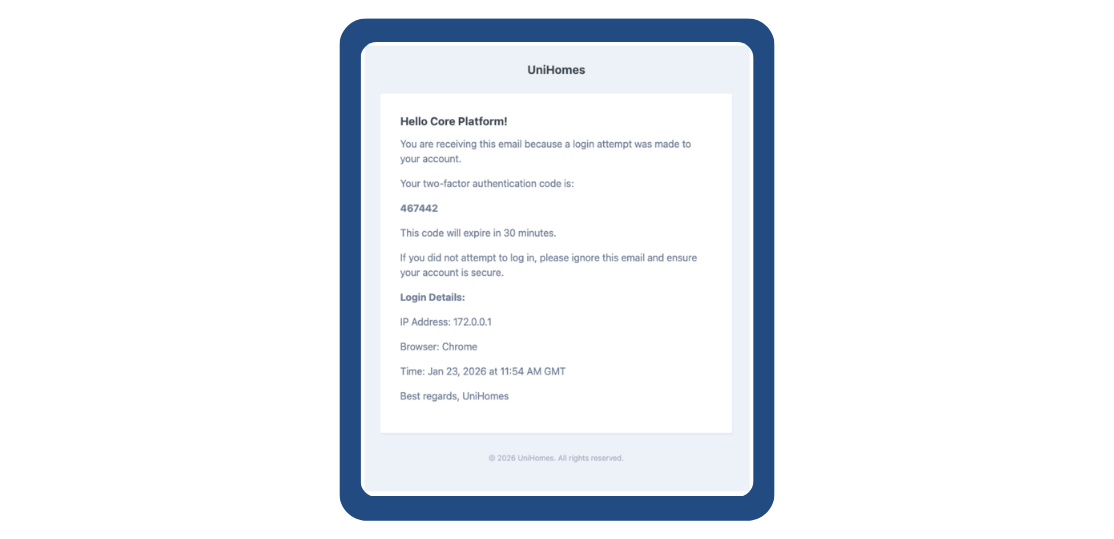
You’ll get an email sent to your accounts email address with the code:
If you don’t receive the code, check your spam folder. Please ensure you whitelist no-reply@unihomes.co.uk on your email account. You can click the Resent Code a maximum of three times in thirty minutes.
Once you have entered the code, click the Confirm & Enable button.
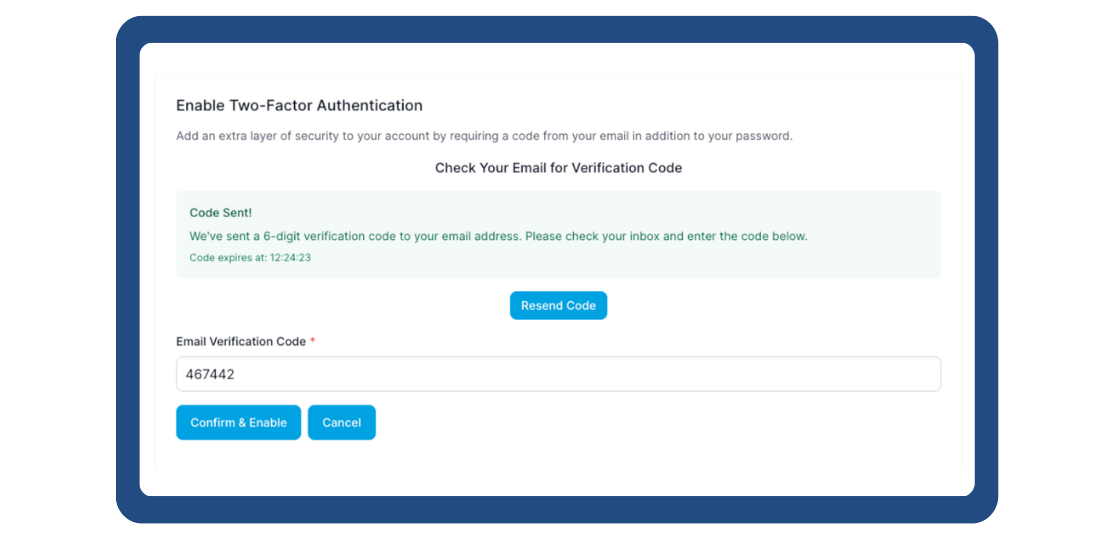
If you don’t receive the code, check your spam folder. Please ensure you whitelist
no-reply@unihomes.co.uk on your email account. You can click the Didn’t receive the code? Resend a maximum of three times in thirty minutes.