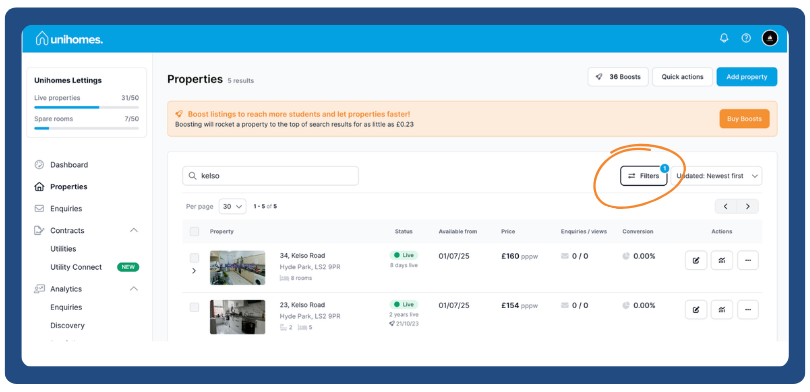
How to Manage your Spare Room Listings

You can’t create a spare room listing from scratch, instead, you can convert an existing property to a Spare Room listing.
- Find Your Property
Head to your Properties dashboard, find the listing you want, click the three dots
(All actions) and select “Convert to spare rooms”.
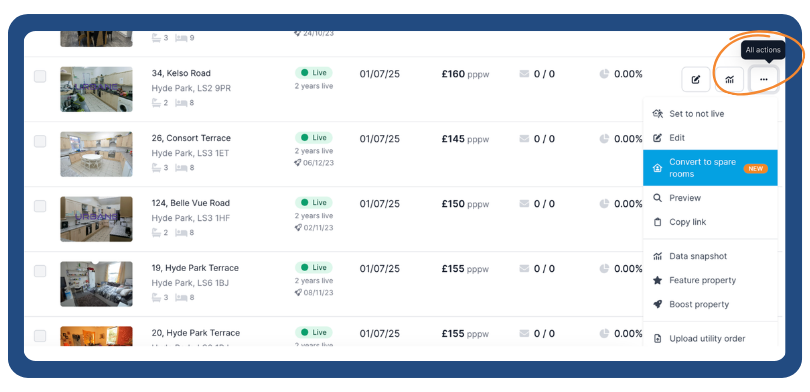
Please note: you’ll only see this option if you have an active spare rooms subscription.
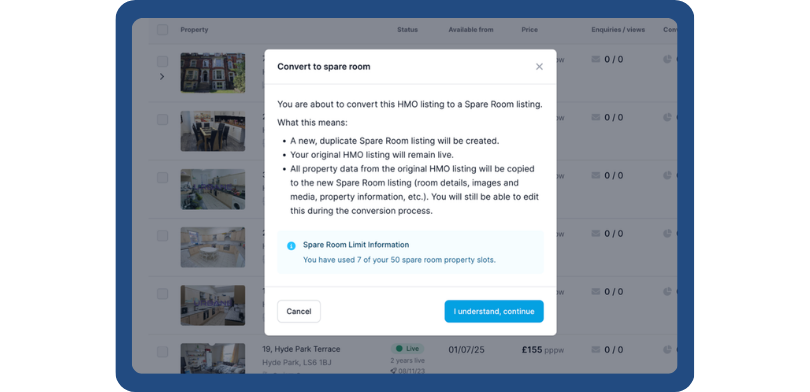
- Confirm the Conversion
A short pop-up will explain what converting your HMO means. Confirm to continue.
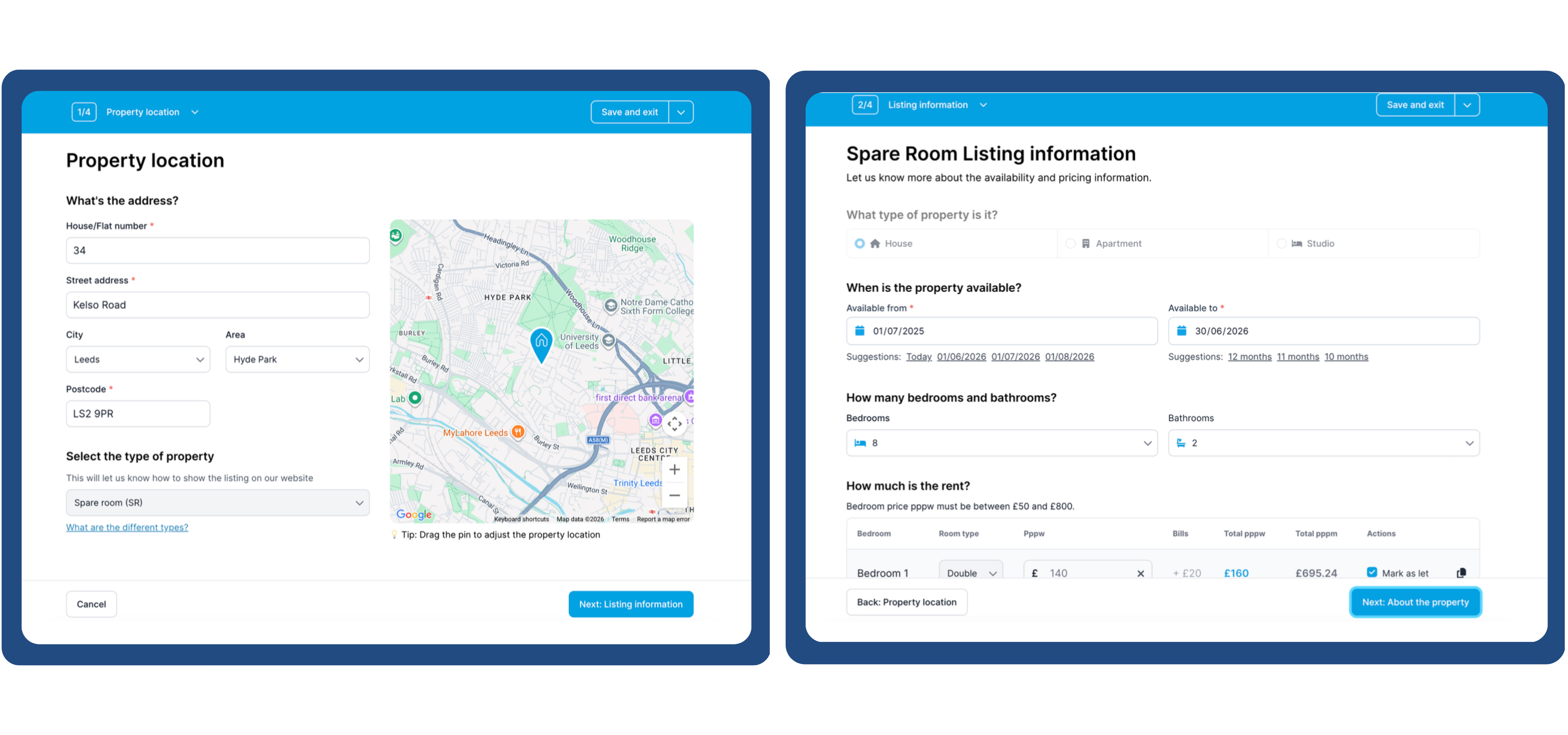
- Update the Essentials
Check and update your property location details to make sure everything is accurate
- Enter availability dates
- Set pricing per room
- Select how many rooms are available for spare room listings
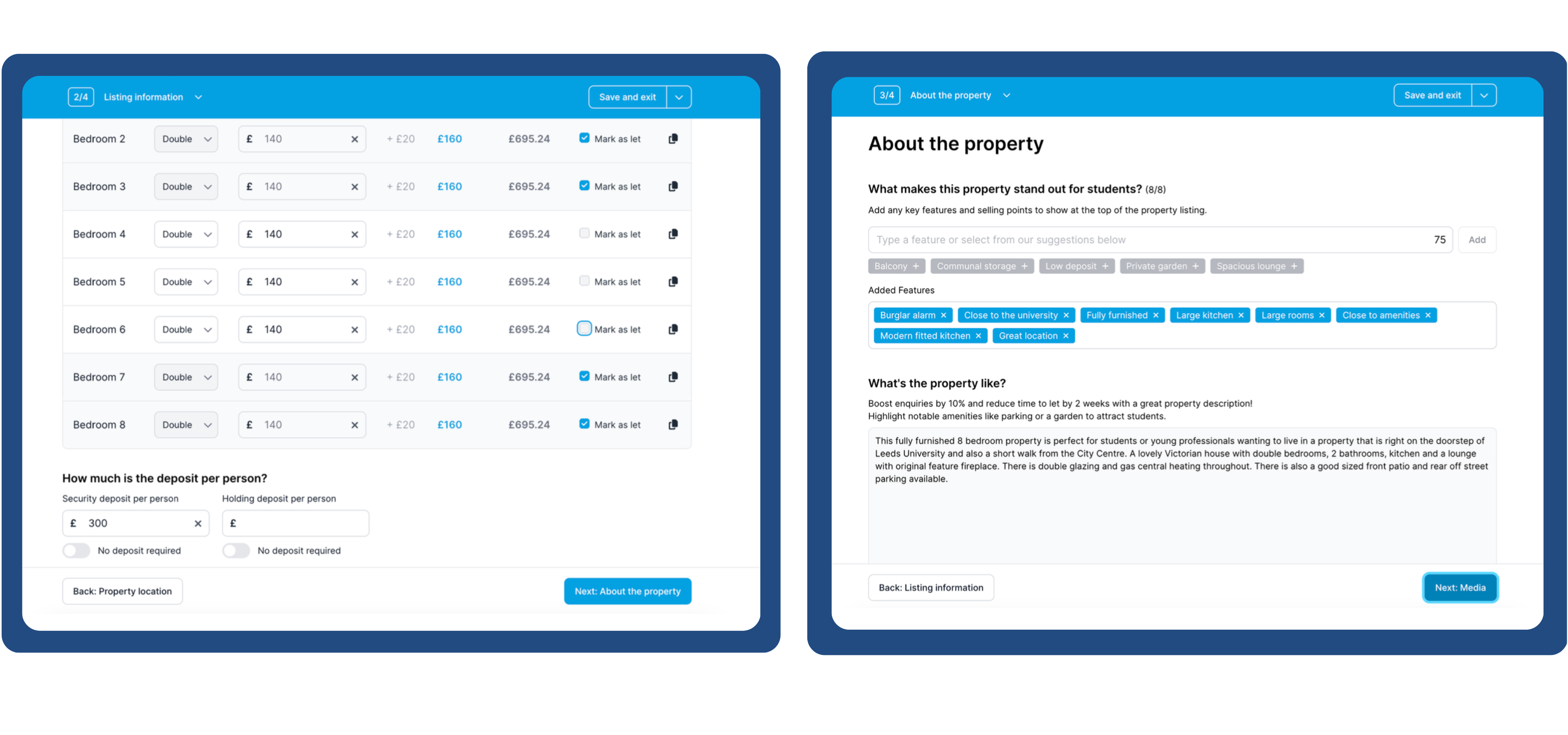
- Make It Stand Out
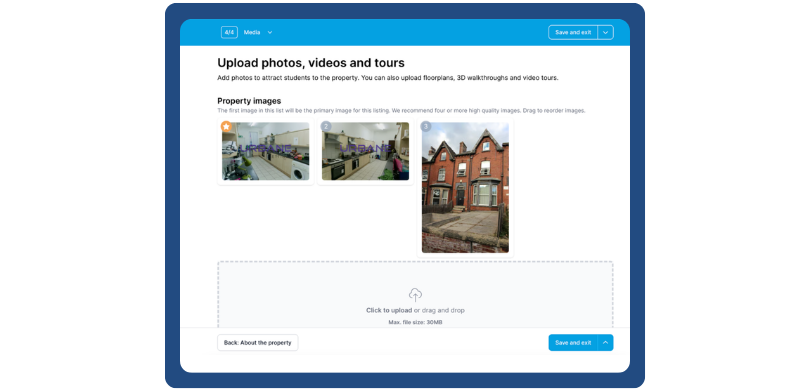
Property features, description and images will all be retained from the original property listing. Make sure these are up to date and are highlighting the things students care about, think location, transport links, and nearby amenities.
- Filter & Manage Listings
Use filters in your dashboard to switch between Spare Rooms and Property listings, so you can manage everything