How to Add a New User

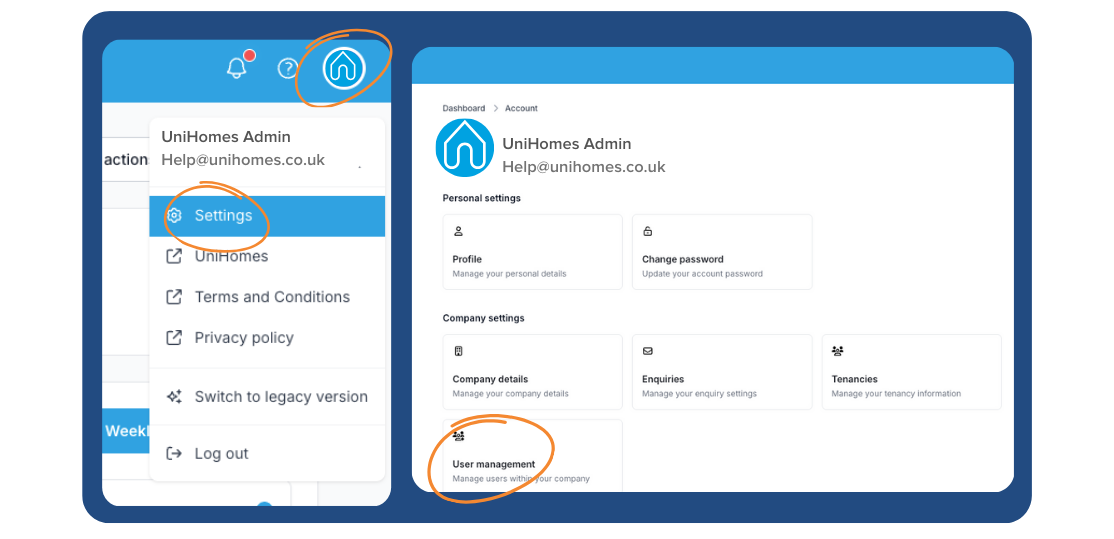
1. Open Settings
Click the home icon at the top of the screen.
Select Settings from the dropdown menu.
2. Go to User Management
On the Account page, scroll to Company settings.
Click User management.
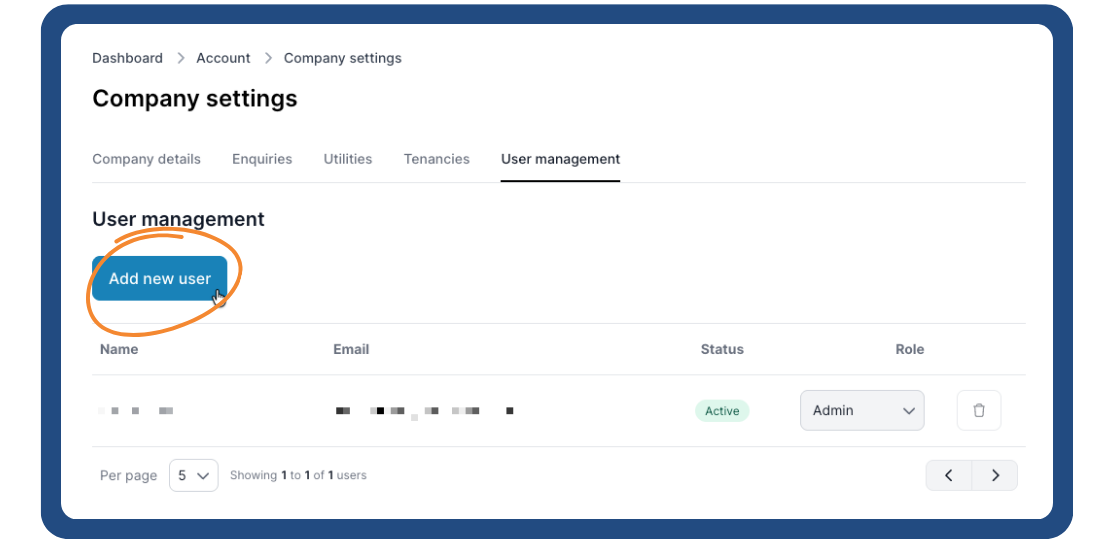
3. Add a New User
Click the Add new user button.
Enter User Details
Fill in:
First name
Last name
Email address
4. Choose a Role from the dropdown:
Admin – full access
Agent – limited access
Save
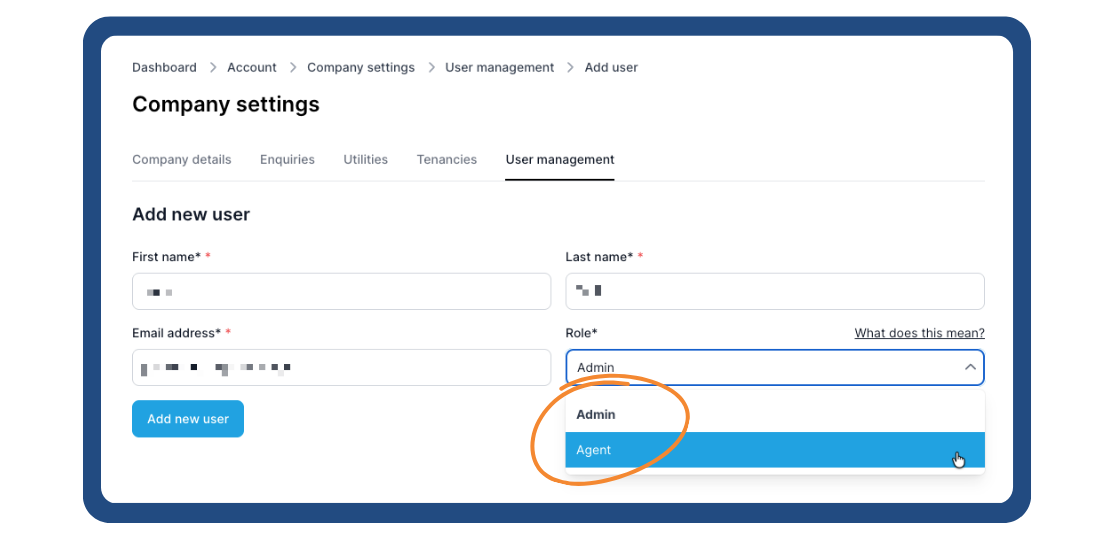
5. Click Add new user to finish.
That’s it — the new user will now appear in the user list.